

Not sure what kind of RAM your computer has? You can check your installed memory in seconds using Windows Task Manager. Just press Ctrl + Shift + Esc, select Performance, and click Memory to see your RAM capacity and speed.
If you’re working with loose RAM sticks or memory removed from a server, you can identify the type, speed, capacity, and manufacturer by reading the label on the module.
Below, we’ll walk you through both methods, including how to identify DDR3, DDR4, and DDR5 memory.
Jump to:
- How to Check Your RAM on a PC
- How to Identify RAM by Looking at It
- How to Read the Label on Your RAM
- How to Check RAM Compatibility
- How to Sell Your Used RAM
- Preguntas frecuentes
How to Check Your RAM on a PC (Windows 10 & Windows 11)
You don’t need to open your computer to find out how much RAM you have. Windows includes built-in tools that let you check your memory capacity, speed, and other specifications.
Steps to Check Your RAM Using Task Manager
The easiest way to check your RAM on a Windows PC is through Task Manager.
- Press Ctrl + Shift + Esc to open Task Manager.
- Click the Performance tab.
- Select Memory from the sidebar.
- Review your installed RAM capacity, speed, and other available specifications.
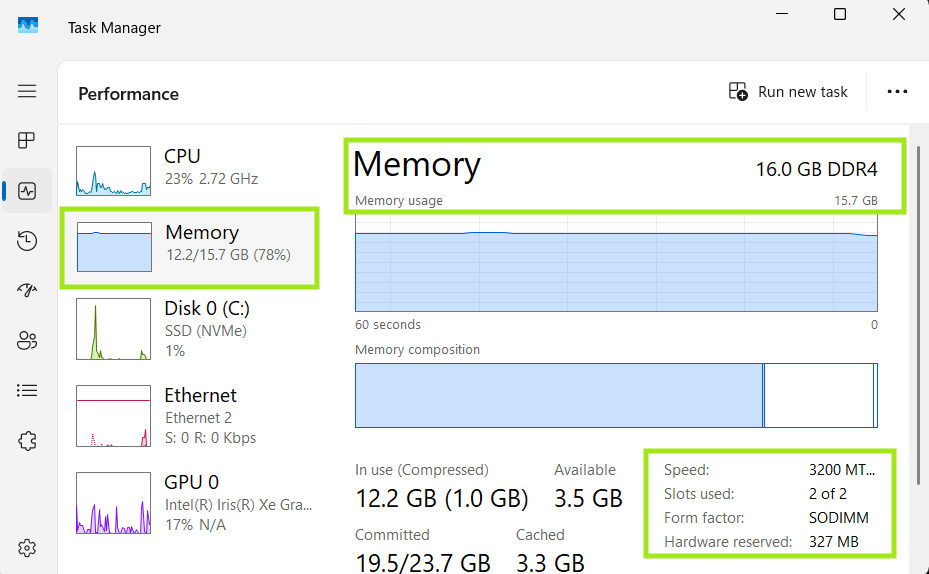
Here’s what to look for:
- Capacity: How much RAM you have installed, such as 16GB, 32GB, or 64GB.
- Speed: The memory’s reported transfer rate, displayed in MT/s or MHz depending on your Windows version.
- Slots used: How many memory slots are occupied, if your system reports this information.
- Form factor: Whether your system uses DIMM, SO-DIMM, or another memory form factor, when available.
Task Manager is useful for checking your total memory and speed, but it doesn’t always show your RAM’s DDR generation, brand, or exact model.
If you need those details, Command Prompt or PowerShell can provide more information.
Check Your RAM Brand and Part Number Using Command Prompt or PowerShell
If you want to identify the manufacturer, capacity, or part number of your installed RAM, you can retrieve that information using a simple command.
For Windows 10 users, Command Prompt with WMIC is a quick option if WMIC is installed. For Windows 11 users, PowerShell is the better choice because WMIC is deprecated and may not be available.
Windows 10: Using Command Prompt
1. Press Windows + R, type cmd, and press Enter.
2. Enter the following command:
wmic memorychip get manufacturer, capacity, partnumber, speed, memorytype
3. Press Enter to view your memory specifications.
Windows 11: Using PowerShell
1. Right-click the Start button and select Terminal or Windows PowerShell.
2. Open a PowerShell tab if Terminal doesn’t already have one selected.
3. Enter the following command:
Get-CimInstance Win32_PhysicalMemory | Select-Object Manufacturer, Capacity, PartNumber, SerialNumber, Speed, SMBIOSMemoryType
4. Press Enter to view your installed memory modules.
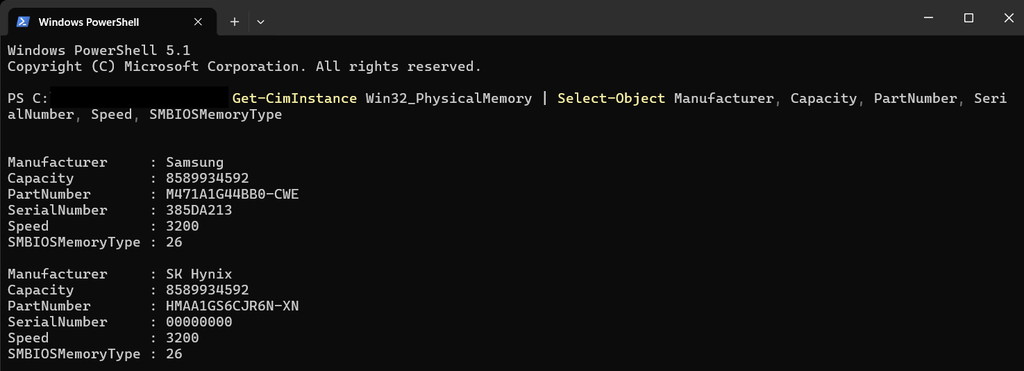
Both methods provide information about your installed memory, although PowerShell can return additional fields.
| Field | Qué significa |
| Manufacturer | The company that manufactured your RAM |
| Capacity | The capacity of each memory module, in bytes |
| PartNumber | The manufacturer’s part number for your RAM |
| SerialNumber | The module’s reported serial number, if available |
| Velocidad | The module’s reported speed |
| MemoryType / SMBIOSMemoryType | A numeric code identifying the memory technology, when available |
For example, if the Capacity field displays 17179869184, that module contains 16GB of RAM.
How do you know if your RAM is DDR3, DDR4, or DDR5?
PowerShell’s SMBIOSMemoryType field may provide that information. Common values include:
- 24: DDR3
- 26: DDR4
- 34: DDR5
If Windows reports a value of 0, it means the memory type isn’t being provided through that field. It doesn’t mean there’s anything wrong with your RAM.
You can also check the physical label on the module, which we’ll cover below.
Where Can You Find RAM in Device Manager?
You won’t typically find your installed system RAM listed as a separate device in Windows Device Manager.
Instead, use one of these tools:
- Task Manager: Go to Performance > Memory to check your installed RAM capacity and speed.
- System Information: Press Windows + R, type msinfo32, and look for Installed Physical Memory (RAM).
- PowerShell: Use the command above to identify individual memory modules.
For most users, Task Manager is the fastest option.
How to Identify RAM by Looking at It
Before removing RAM from your computer, completely power down the system, disconnect it from power, and follow appropriate electrostatic discharge (ESD) precautions. Ground yourself using a properly connected anti-static wrist strap or another approved ESD grounding method, and handle memory modules by their edges.
Never remove RAM while your computer is running. If you’re working with a laptop or enterprise server, check the manufacturer’s service instructions before opening the system.
If you’ve already removed the RAM safely, you can identify many of its specifications without reinstalling it.
A RAM stick is a long, narrow circuit board with memory chips attached to one or both sides. Most modules are green or black, although some consumer RAM has a metal heat spreader covering the chips.
Along the bottom edge, you’ll see gold-colored contacts and a small notch that helps align the module with the correct memory slot.
You’ll also typically find a manufacturer’s label containing information such as the capacity, speed, part number, and memory type.
What Does RAM Look Like in a Laptop, Desktop, or Server?
RAM comes in several physical formats depending on the type of computer it’s designed for.
- SO-DIMM (Laptop RAM): Approximately 2.66 inches long. These compact modules are commonly used in laptops and mini PCs.
- UDIMM (Desktop RAM): Approximately 5.25 inches long. These full-length, unbuffered modules are commonly used in desktop computers and workstations.
- RDIMM (Server RAM): Approximately 5.25 inches long. Registered DIMMs are commonly used in enterprise servers and include register circuitry.
- LRDIMM (High-Capacity Server RAM): Approximately 5.25 inches long. Load-reduced modules use additional buffering to support high-capacity memory configurations.
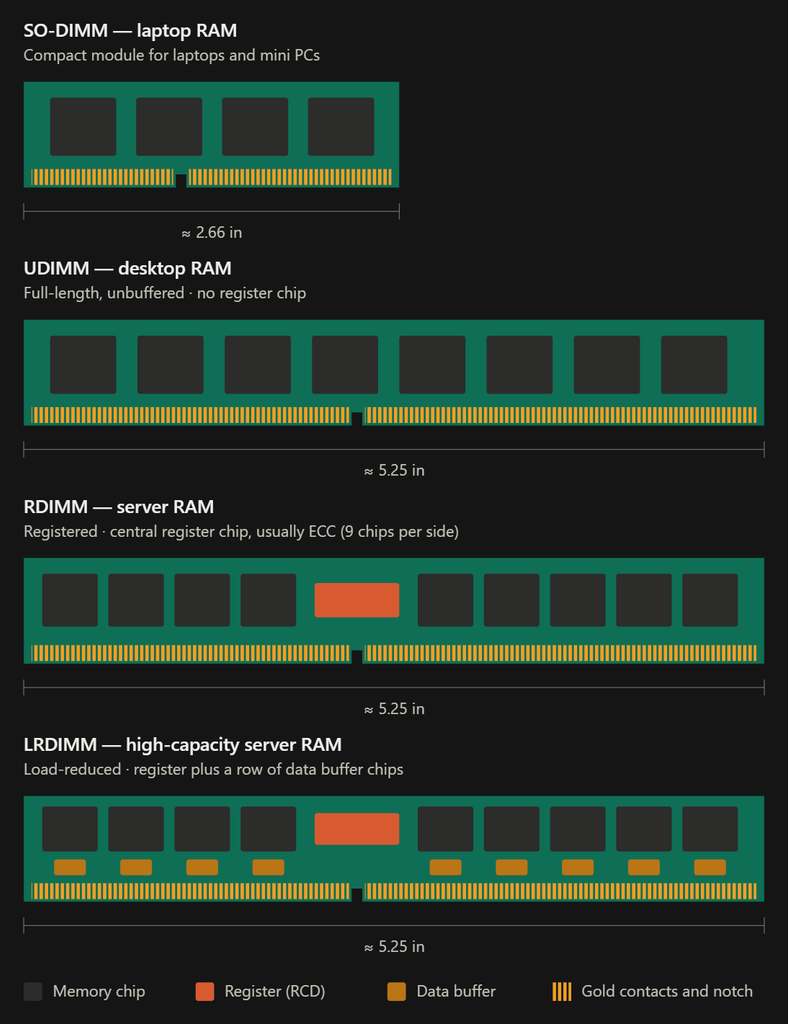
Desktop UDIMMs and server RDIMMs are often nearly identical in size, which makes them harder to distinguish visually.
Server RDIMMs typically contain an additional register chip that buffers command and address signals. LRDIMMs use more extensive buffering to support high-capacity server memory configurations.
However, you shouldn’t rely on appearance alone. Checking the manufacturer’s label is the most reliable way to determine exactly what type of RAM you’re holding.
Can you use server RAM in a desktop?
Usually not. Most consumer desktop motherboards don’t support registered or load-reduced server memory, even if the modules appear to be the same size.
Always check your motherboard’s supported memory specifications before installing RAM.
How to Read the Label on Your RAM
The sticker on your RAM contains some of the most useful information for identifying the module.
If you’re checking the RAM in your personal computer, you may only need to know its capacity, speed, and DDR generation.
However, if you’re managing server upgrades, sorting decommissioned hardware, or preparing IT assets for resale, the exact part numbers become much more important. IT professionals use these identifiers to verify compatibility, organize inventory, and help determine resale value.
Manufacturers such as Samsung, SK Hynix, and Micron commonly include information about the memory generation, capacity, speed, rank, and module type.
For example, you might find a label that reads:
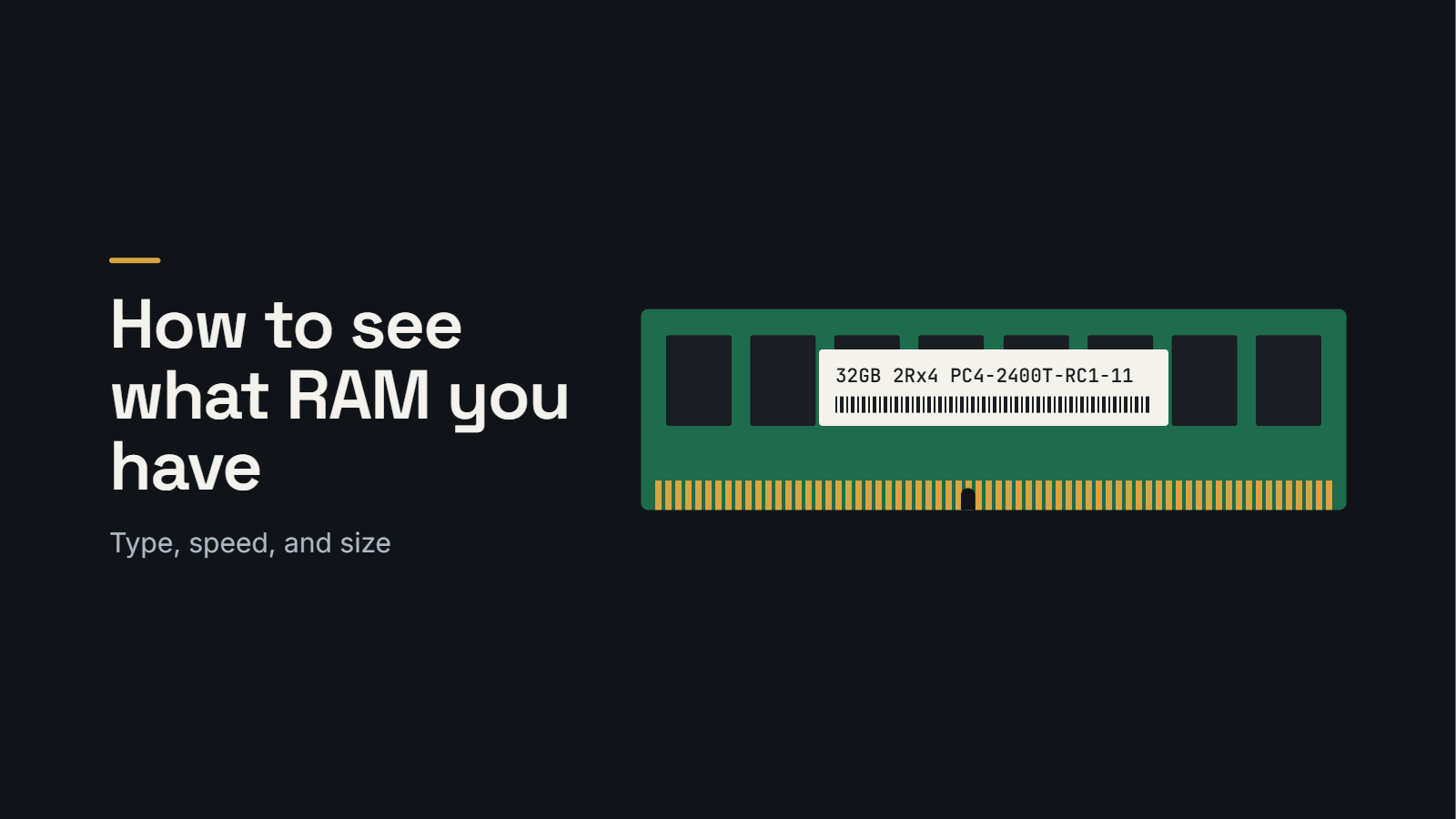
32GB 2Rx4 PC4-2400T-RC1-11
Here’s what those specifications mean:
| Especificación | Meaning |
| 32 GB | Your RAM’s total capacity |
| 2Rx4 | Dual-rank memory using x4-organized chips |
| PC4 | DDR4 memory |
| 2400T | DDR4-2400 speed grade |
| R | Registered memory, commonly used in servers |
| C1-11 | Additional module specification codes |
How to Tell if Your RAM Is DDR3, DDR4, or DDR5
If you’re trying to figure out what DDR generation your RAM uses, look for the PC designation on the manufacturer’s label.
The most common identifiers are:
- PC3: DDR3 RAM
- PC4: DDR4 RAM
- PC5: DDR5 RAM
For example, if your RAM is labeled PC4-2400, you have DDR4 memory. If it says PC5-4800, you have DDR5.
Some DDR3 modules use the designation PC3L, which indicates a lower-voltage version of DDR3.
Knowing your RAM generation is important because different generations aren’t interchangeable.
For more ways to identify your memory, see our guide on how to know if you have DDR4 or DDR5 (INTERNAL LINK: DDR3/DDR4/DDR5 ARTICLE).
How to Find Your RAM’s Serial Number and Part Number
If you need to identify a specific RAM module, look for the manufacturer’s part number and serial number on its label.
These identifiers serve different purposes.
- Part number (P/N): Identifies the memory module’s specific product configuration, including characteristics such as capacity, speed, and module type.
- Serial number (S/N): Identifies an individual memory module when the manufacturer provides one.
Multiple identical RAM sticks may share the same part number, but their serial numbers are typically unique.
If you’re checking RAM compatibility or preparing used memory for resale, the part number is usually the most useful information to record.
For example, if you’re inventorying 200 server RAM sticks, grouping them by manufacturer part number, capacity, and quantity makes it easier to organize the inventory and request a buyback quote.
Serial numbers can also be helpful for internal asset tracking, warranty verification, and inventory documentation.
What Do U, R, L, and E Mean on RAM?
You may notice letters such as U, R, L, or E in your RAM’s specifications.
These can indicate the type of memory module and whether it’s intended for consumer or enterprise hardware.
| Designation | RAM Type | Typical Application |
| U | Unbuffered DIMM (UDIMM) | Desktop computers |
| R | Registered DIMM (RDIMM) | Enterprise servers |
| L | Load-Reduced DIMM (LRDIMM) | High-capacity servers |
| E | ECC Unbuffered DIMM | Workstations and compatible servers |
The placement and meaning of these letters can vary depending on the manufacturer and part-number format.
What about ECC RAM?
ECC stands for Error-Correcting Code. This type of memory can detect and correct certain data errors, making it valuable in servers and workstations where reliability is important.
Many enterprise RDIMMs and LRDIMMs support ECC, but ECC and registered memory aren’t the same thing.
When identifying server RAM, it’s worth checking both the module type and whether it supports ECC.
How to Check if Your RAM Is Compatible
If you’re identifying your current RAM because you want to upgrade your computer, you’ll need to make sure the replacement memory is compatible with your system.
RAM isn’t universal. Different motherboards support different memory generations, capacities, speeds, and module types.
Before buying new RAM, check the following:
- DDR generation: Does your motherboard support DDR3, DDR4, or DDR5?
- Form factor: Does your computer require a desktop DIMM or laptop SO-DIMM?
- Capacity: What’s the maximum amount of RAM your motherboard supports?
- Speed: Which memory speeds are supported by your CPU and motherboard?
- Module type: Does your system support UDIMM, RDIMM, LRDIMM, or ECC memory?
Can You Put DDR4 RAM in a DDR5 Slot?
No. DDR4 and DDR5 RAM aren’t physically or electrically compatible.
The notch along the bottom of each module is positioned differently to prevent you from installing the wrong generation.
You also can’t mix DDR4 and DDR5 memory in the same conventional motherboard memory configuration.
How Do You Know if RAM Is Compatible With Your Motherboard?
The best place to start is your motherboard manufacturer’s website.
Find your motherboard model and review its memory specifications. You can often find the model in Windows System Information under BaseBoard Product.
Many manufacturers also publish a Qualified Vendor List (QVL), which identifies memory modules they’ve tested with that motherboard.
A QVL is a useful RAM compatibility checker, although memory that isn’t listed may still work.
If you’re upgrading an enterprise server, you’ll also want to review the manufacturer’s memory population guidelines. Server memory compatibility can depend on your CPU generation, module rank, capacity, and how many memory slots are populated.
How to Sell Your Used RAM
If you’re checking RAM from retired servers, workstations, or data center equipment, you may be sitting on hardware that still has resale value.
Used enterprise memory is frequently purchased for server upgrades, replacement parts, and refurbished IT equipment.
Rather than sending working RAM directly to recycling, you may be able to recover some of your original hardware investment through a RAM buyback program.
What Types of Used RAM Are Worth Selling?
The resale value of your RAM depends on its specifications, condition, quantity, and current market demand.
At exIT Technologies, we evaluate used memory from businesses, data centers, and IT equipment refresh projects.
Some of the memory types we purchase include:
- DDR4 and DDR5 server RAM: Memory used in enterprise servers and data center infrastructure.
- RDIMMs: Registered memory commonly found in enterprise servers.
- LRDIMMs: High-capacity, load-reduced memory used in compatible server systems.
- Bulk desktop RAM: Memory recovered from corporate computer upgrades and equipment refreshes.
- OEM RAM: Memory from manufacturers such as Samsung, SK Hynix, and Micron.
Higher-capacity modules and larger quantities of matching part numbers can be particularly attractive to secondary-market buyers.
However, not every RAM module has significant resale value. Older generations, low-capacity modules, and small quantities may have limited demand.
What Information Do You Need to Sell Your RAM?
If you’re preparing an inventory for a buyback quote, start with the information you’ve already learned how to identify.
For each type of RAM, record:
1. Manufacturer: Samsung, SK Hynix, Micron, or another brand.
2. Part number: The manufacturer’s model identifier.
3. Capacity: Such as 16GB, 32GB, 64GB, or 128GB.
4. Generation and speed: Such as DDR4-3200 or DDR5-4800.
5. Module type: UDIMM, RDIMM, or LRDIMM.
6. Quantity: How many modules you have with those specifications.
You don’t necessarily need to record every serial number to get started.
For larger inventories, a spreadsheet listing the part numbers and quantities is often enough for an initial evaluation. Photos of the labels can also help verify the specifications.
Get a Quote for Your Used RAM
At exIT Technologies, we help businesses recover value from retired IT equipment, including enterprise server memory and bulk RAM inventories.
Whether you’re decommissioning a data center, replacing aging servers, or upgrading your company’s hardware, we can evaluate your used RAM and provide a competitive buyback offer based on current market demand.
Have RAM to sell? Send us your part numbers and quantities to request a free, no-obligation quote.
Preguntas frecuentes
What Is a RAM Stick?
A RAM stick is a physical memory module that temporarily stores information your computer needs to run programs. RAM stands for Random Access Memory, and it’s considered volatile because its stored data is generally lost when the computer loses power.
Learn more about what RAM is on a PC and how it differs from permanent storage.
What Is RAM Made Of?
RAM is made from silicon memory chips mounted on a printed circuit board (PCB), typically constructed using fiberglass-reinforced materials and copper circuitry. The connector pins usually have a thin layer of gold plating to help maintain reliable electrical connections.
Does RAM Need Drivers?
No. Your RAM doesn’t require separate device drivers. It operates through your computer’s memory controller, motherboard firmware, and operating system. However, the RAM still needs to be compatible with your motherboard and CPU.
Can You Check Your RAM Without Opening Your Computer?
Yes. You can use Windows Task Manager to check your installed RAM capacity and speed. PowerShell can provide additional details, including the manufacturer, part number, and serial number when that information is available.
How Do You Check Your RAM Brand in Windows 11?
Open PowerShell and enter Get-CimInstance Win32_PhysicalMemory | Select-Object Manufacturer, PartNumber. This displays the manufacturer and part number reported by your computer. You can also check the physical label on the RAM module.
How Much Video RAM Do You Have?
You can check your video RAM (VRAM) by opening Task Manager > Performance > GPU and looking for Dedicated GPU memory. VRAM is used by your graphics processor to store textures, frame buffers, and other graphics-related data. It’s different from system RAM, which temporarily stores information used by your CPU and applications. If you use integrated graphics, your GPU may share some of your system RAM.
Is It Safe to Remove RAM to Check the Label?
Yes, provided you completely power down your computer, disconnect it from power, and follow proper ESD precautions before touching internal components. Handle RAM by its edges, avoid touching the gold contacts, and follow your computer manufacturer’s service instructions.
Is 16GB or 32GB of RAM Better?
For everyday browsing, office work, and general computing, 16GB is enough for many users. If you frequently run demanding applications, edit large files, or multitask heavily, 32GB may provide a better experience. The right amount depends on your computer and how you use it.

 Spanish
 English
 German
 French
 Swedish
 Dutch